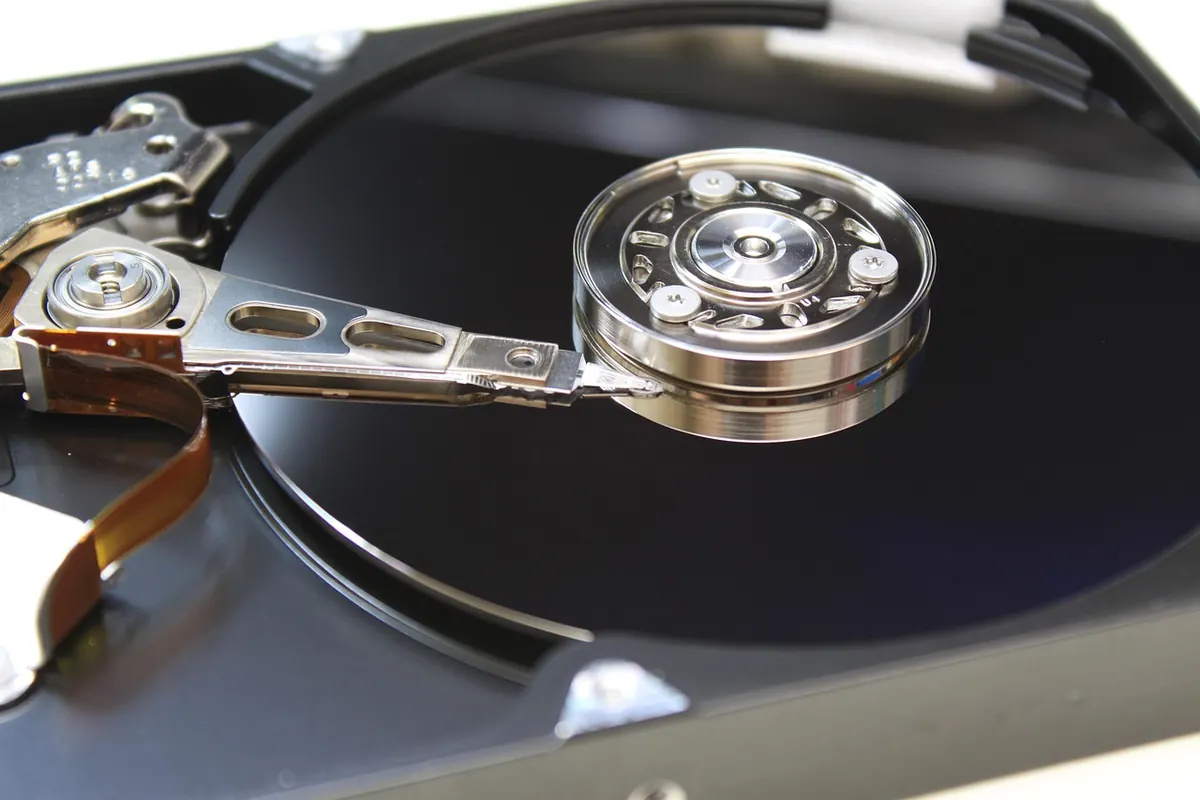
Most files don't disappear in a dramatic crash. They vanish because a laptop bag gets left on a train, a sync folder faithfully copies a deletion to every device, or a ransomware email turns three years of work into noise. The good news is that the fix is well understood, cheap, and takes an afternoon to set up. Here's what the 3-2-1 rule actually asks of you, where cloud and local copies each earn their keep, and how to run both without buying everything twice.
Sync keeps your devices identical. Backup keeps a copy you can go back to. Those sound like the same thing until something goes wrong.
If you delete a file in a synced folder, that deletion travels to the server and to every other device within seconds. Most services offer a recovery window, often measured in days or weeks, but the default behaviour is mirroring: whatever you do to one copy happens to all of them. A real backup is a separate copy you can restore from even if the original is corrupted, encrypted by ransomware, or deleted by your own tired mistake at 11pm.
This is why "I keep everything in Google Drive" is not an answer. It's half an answer.
You've probably seen the phrase 3-2-1 backup and nodded without ever having it explained. It's simply this: three copies of anything you can't afford to lose, on two different types of storage, with one copy kept somewhere else.
The original plus two backups. If your only second copy lives on the same physical drive as the first, you have one copy with extra steps.
An external drive and a cloud service count as two. Two external drives on the same desk, plugged into the same power strip, count as one when a surge or a spilled drink arrives.
Off-site means a fire, flood, theft, or burst pipe in one building can't take every copy with it. Cloud storage is the easiest way to satisfy this. A drive you rotate to a relative's house works just as well.
Speed, cost, and control. Restoring a few hundred gigabytes from an external drive is a coffee break. Restoring the same volume from the cloud can take days, limited by your download speed and the provider's throttling. Local hardware is usually a one-time purchase: no subscription, no bandwidth ceiling, no third party holding your files.
Local also works when nothing else does. If your internet is down, a local restore still runs. And a drive you own doesn't change its terms of service or shut down.
The catch is discipline. Drives fail. They get stolen, dropped, and encrypted by the same ransomware that hit your laptop. And a drive sitting in a drawer for eight months is only a backup if you actually plug it in.
Automation and geography. Cloud backup runs on its schedule, not your memory, and it keeps version history, so you can pull back a document from three weeks ago before a bad edit. It survives whatever happens to your building. Reputable services encrypt your files before they leave your machine, which is worth verifying before you sign up.
The trade-offs are real: an ongoing fee, a slow first upload, and a restore that depends on someone else's service staying available. Cloud is not a replacement for local. It's the other half of the pair.
The trick is to stop treating cloud storage, cloud backup, and external drives as three separate purchases, each of which needs to cover everything.
A backup you have never restored from is a hope, not a plan.
The most common is assuming a synced folder is a backup, followed closely by never testing a restore. Leaving the external drive permanently plugged in is another: ransomware and power surges reach whatever is connected. Storing the only encryption key on the machine you're protecting is a third. Use a password manager, and keep a printed copy of the recovery code somewhere a burglar won't look.
If you handle client data, financial records, or anything with contractual retention requirements, check what your obligations actually are before choosing where copies live. That's a conversation worth having with a qualified adviser rather than guessing from a blog post.
Don't rebuild your digital life in one evening. Pick the folder you'd panic about losing, copy it to a drive you already own, and point one cloud service at it. That single move gets you to 3-2-1 for the files that matter, and it costs less than a takeaway. Everything else can follow next month, when you've confirmed the first restore actually works.
Photo: Gray_Rhee / Pixabay

Unassigned seats, duplicate subscriptions and forgotten renewal dates drain small IT budgets quietly. Here are ten...

Free antivirus covers basic malware blocking, but paid tiers add phishing defence, VPNs, parental controls, priority...

SSDs cut boot times and survive drops; hard drives still win on cost per terabyte. Here is how to match each drive...

Your trusted source for reliable IT solutions.
